
House party visuals: make the music fill the room
Good house party visuals give people another way to enjoy the music together. A TV or projector becomes a shared focal point while the music remains the reason everyone is there. You can start with the equipment already in the room and build an atmosphere rather than a complicated show.
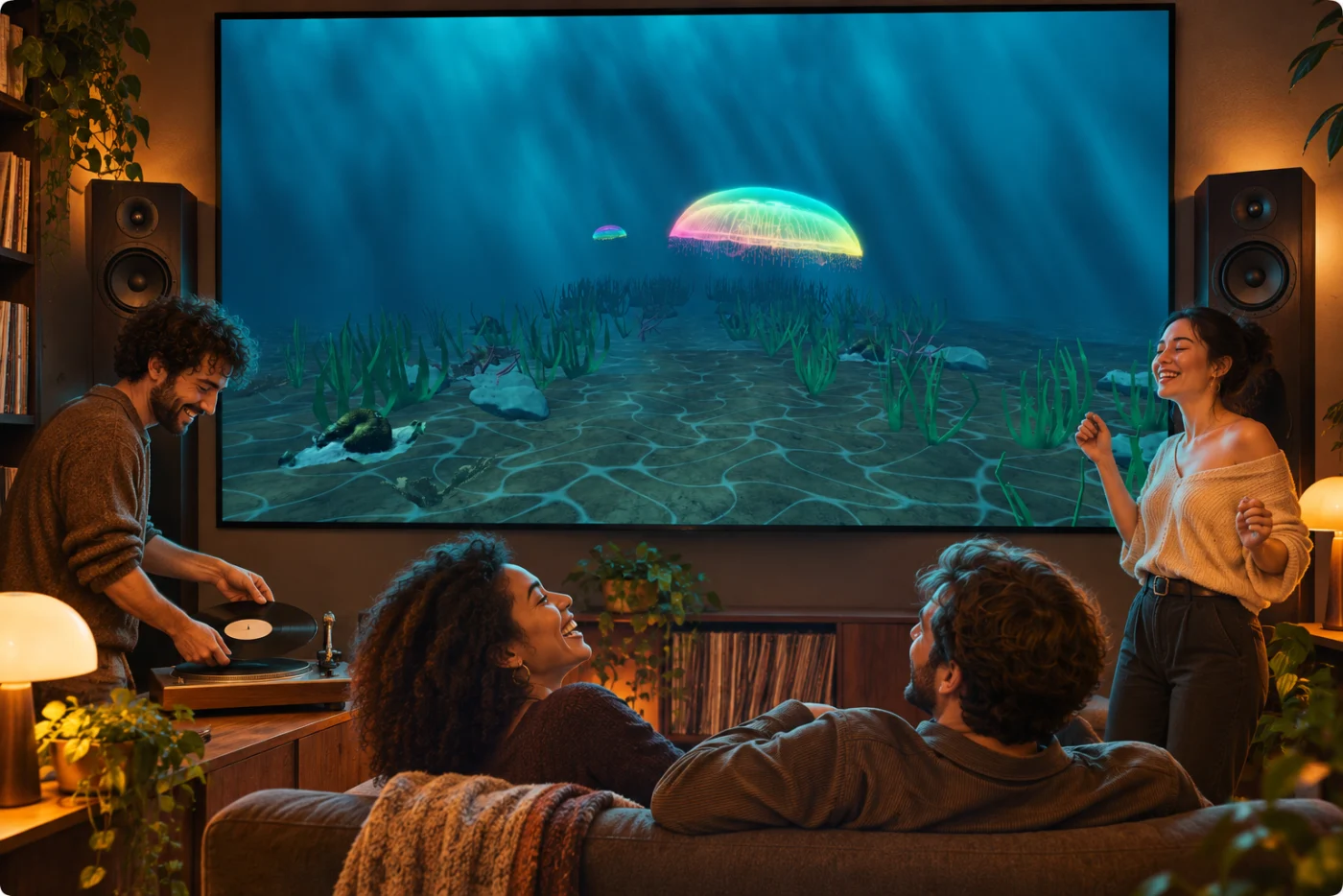
Give the screen a place in the room
Use a TV people can see from the listening area, or project onto a clear surface near the music setup. Try the view from where guests will sit or dance. Leave enough space around the screen so a bright image does not overpower every conversation.
The scale matters more than filling the room with equipment. One well-positioned screen showing a live visual can establish the atmosphere. Keep the Apple device somewhere accessible so you can change worlds without reaching behind the TV.
Let the music reach the app
For a quick start, play music through the room speakers and use the device microphone. Put it where the music is clear and check the analyzer meter. Recalibrate at a normal listening level rather than turning up the speakers just to make the image move.
For playback on a Mac, System Audio provides another route. If your mixer or record-player setup offers an appropriate audio output, a compatible interface can provide a direct input. iPhone and iPad use microphone or connected audio; they do not analyze arbitrary other apps internally.
Choose a few moods instead of an endless slideshow
Pick a welcoming look, a more energetic look and a calmer one. Geometry Flux can supply bold shapes; Jellyfish Current offers a different atmosphere for listening; an ocean world can give the screen a continuous horizon. Preview the worlds with your own music before deciding.
A visual does not need to change scenes on every beat. Hold lets a world develop through a track, Ordered follows your chosen sequence, and Adaptive selects from the worlds you include. The controls shape the visual experience; they do not change the music playing through the speakers.
Make the response comfortable for the room
Use a quieter passage and a stronger beat when tuning response. Start gently, then add intensity only if it helps the music feel present. The right level for a projector in a dark room may be different from a TV beside a lit dining table.
Ask the people in the room what feels comfortable. Reduce motion and flashing effects when needed, keep a calmer world available, and use the app’s blackout control when you want the screen quiet. These are useful performance choices, not a reason to run at maximum intensity all evening.
Keep the host’s job simple
Connect the screen and check the audio destination before people arrive. Confirm that the visual output has not unexpectedly moved music to a muted TV. Rehearse the actual AirPlay or HDMI route, including whether controls remain on the device.
Start with the free worlds, save a look you like and leave it running while you host. If you want more choice, explore the collection using the current App Store purchase options. The strongest setup is the one you have already heard and seen working in your room.
Before guests arrive
- The screen is visible from the listening or dancing area.
- Music reaches the app at the intended volume.
- A small set of visual moods is prepared.
- Motion and flashing choices suit the people present.
- You can reach the controls without interrupting the room.
Sources and further reading
Published by Kamilovision. External product information is based on the linked official documentation, reviewed November 2, 2026. Product names belong to their owners; no affiliation or endorsement is implied.