
DJ booth screen visuals: connect your music to the big screen
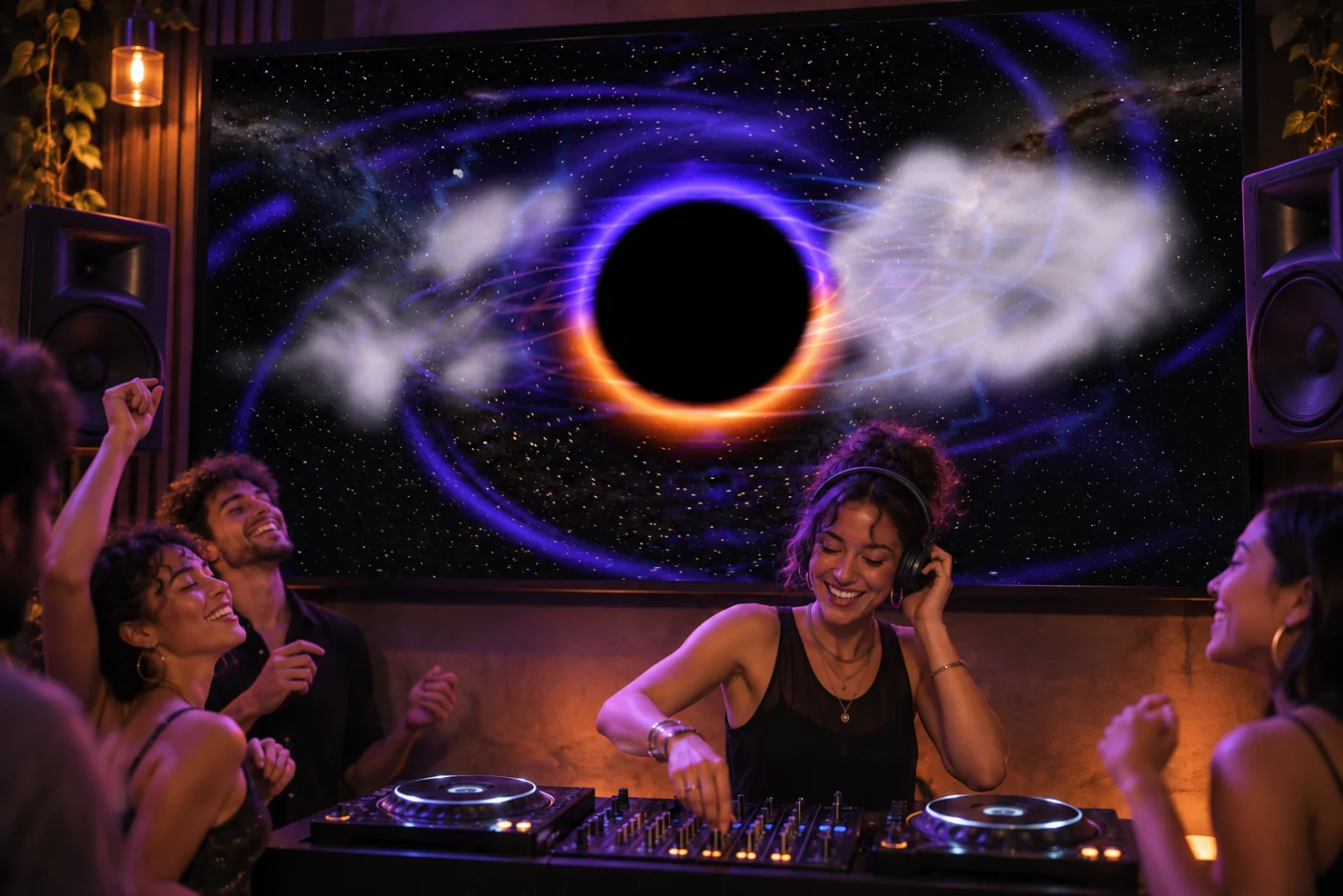
A screen behind a DJ booth gives the room a visual focus that can follow the set. Kamilovision supplies live visual worlds; your device analyzes the selected music signal and sends the picture to a compatible display. A dependable setup starts by treating the audio input and audience output as two separate connections.
Draw the two signal paths
The first path is music source → compatible audio input → Kamilovision. The second is Kamilovision → compatible display connection → audience screen. The sound the audience hears still follows your mixer and speaker routing. Connecting HDMI does not automatically feed mixer audio into the analyzer.
If the DJ software runs on the same Mac, System Audio may be the appropriate source. If the music comes from separate decks or a mixer, use a compatible audio input or microphone. On iPhone and iPad, the available route is microphone or connected audio, not internal capture from arbitrary apps.
Check the mixer and interface before buying adapters
A mixer with USB is not automatically an audio input for every Apple device. Check its documented USB audio channels, device compatibility and the signal it sends. Use a suitable line-level connection into an interface input when your equipment provides one; a USB charging port or display adapter is a different connection.
Keep the analyzer meter visible during setup. If it stays flat, inspect input selection and permission before adjusting visual intensity. If it is always pushed to the top, reduce the signal or gain and calibrate with a representative part of the set.
Give the audience the picture, keep yourself the controls
Use Presentation to verify the connected display and intended audience output. On supported routes, the screen shows the visual while the device retains controls. Other routes may mirror the device, so check the actual result before the room opens.
A wired connection is a useful starting point for a fixed booth. Wireless routes can be convenient, but test them with the actual receiver and network. Music-reactive output is not a guarantee of sample-accurate synchronization, zero display latency or integration with a DJ software beat grid.
Plan the visual progression
Choose a small Live Set that fits the music. Hold can let one world develop through a track; Ordered follows a planned sequence; Adaptive uses the worlds you include. Save looks with color and intensity choices that work on the audience screen, not just the smaller control display.
Practice Build, Drop, Breakdown and Surge cues with the music before performing. They shape the visual moment rather than controlling playback. Keep a quieter look available so a softer section has contrast with the next energetic passage.
Know when a different tool fits
Kamilovision focuses on ready-to-play music-reactive worlds and their controls. If you need timeline-based clip mixing, projection mapping, lighting protocols or a programmed show system, evaluate those requirements directly in a dedicated performance tool. Do not assume a standard video output supplies those features.
For a party or DJ set built around an existing screen, begin with one working audio route and one working display route. Rehearse a full transition, listen for routing changes and check sustained performance. That practical test is more useful than choosing a visual solely from a screenshot.
Before guests arrive
- The mixer or Mac signal reaches the selected analyzer input.
- Audio level is useful through quiet and loud passages.
- The audience display shows the correct output.
- Visual cues and world changes have been rehearsed.
- The full set’s signal path is understood without relying on unverified integrations.
Sources and further reading
Published by Kamilovision. External product information is based on the linked official documentation, reviewed November 2, 2026. Product names belong to their owners; no affiliation or endorsement is implied.